
Knowledge
Tips, comparisons, and insights for BI professionals
Tableau Asset Inventory – Counting Published Workbooks In Tableau
The same page you explore workbooks in Tableau provides a quick and simple method to explore, inventory Workbook usage.
Tableau Asset Inventory – Counting Published Connections In Tableau
The count of Tableau connections and utilized connections is readily available out of the box in Tableau server and Tableau Cloud.
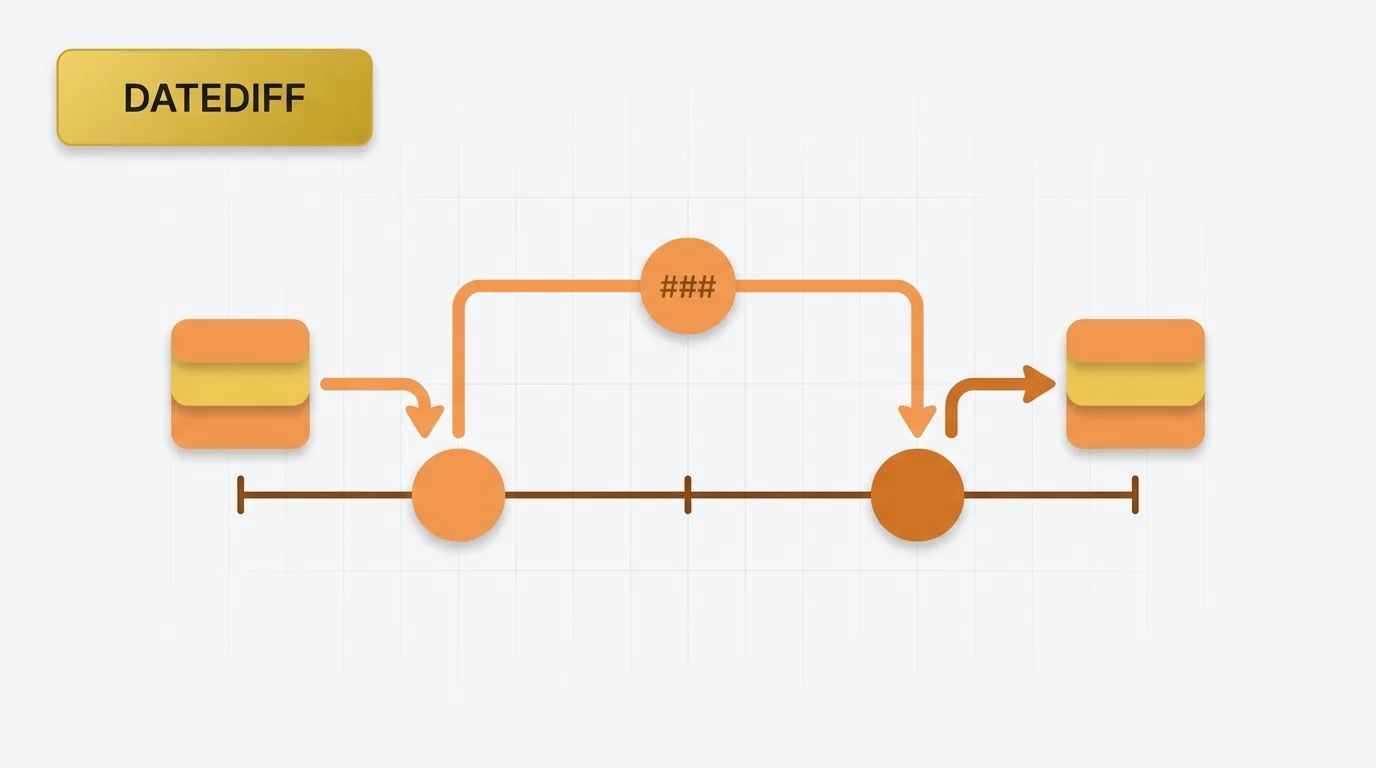
Understanding the Power BI DATEDIFF Function in DAX
Learn how Power BI DATEDIFF, what it returns, and how to use it correctly in common date calculations.
Understanding the Power BI DATEADD Function
Learn how Power BI DATEADD works, when to use it for time intelligence, and how it differs from simple date shifting in analytical models.
Understanding Power BI Date Part Functions in Power BI
Power BI date part functions return specific components of a date, such as the year, month, day, week number, and quarter
Understanding Power BI Time-Intelligence Functions
Learn how Power BI time-intelligence functions like STARTOFMONTH and STARTOFYEAR return the first date in a period and how they behave in common reporting scenarios.
Understanding Power BI COALESCE
Learn how Power BI COALESCE works and how it changes calculations when values can be blank.
Understanding Power BI SUMX, AVERAGEX, VALUES, and SUMMARIZE
Learn how Power BI SUMX, AVERAGEX, VALUES, and SUMMARIZE work together to control grouping, iteration, and aggregation for reliable measures.
Understanding Power BI CALCULATE and REMOVEFILTERS
Learn how Power BI CALCULATE with REMOVEFILTERS changes filter context in Power BI and how to use it for stable totals, ratios, and comparison measures.
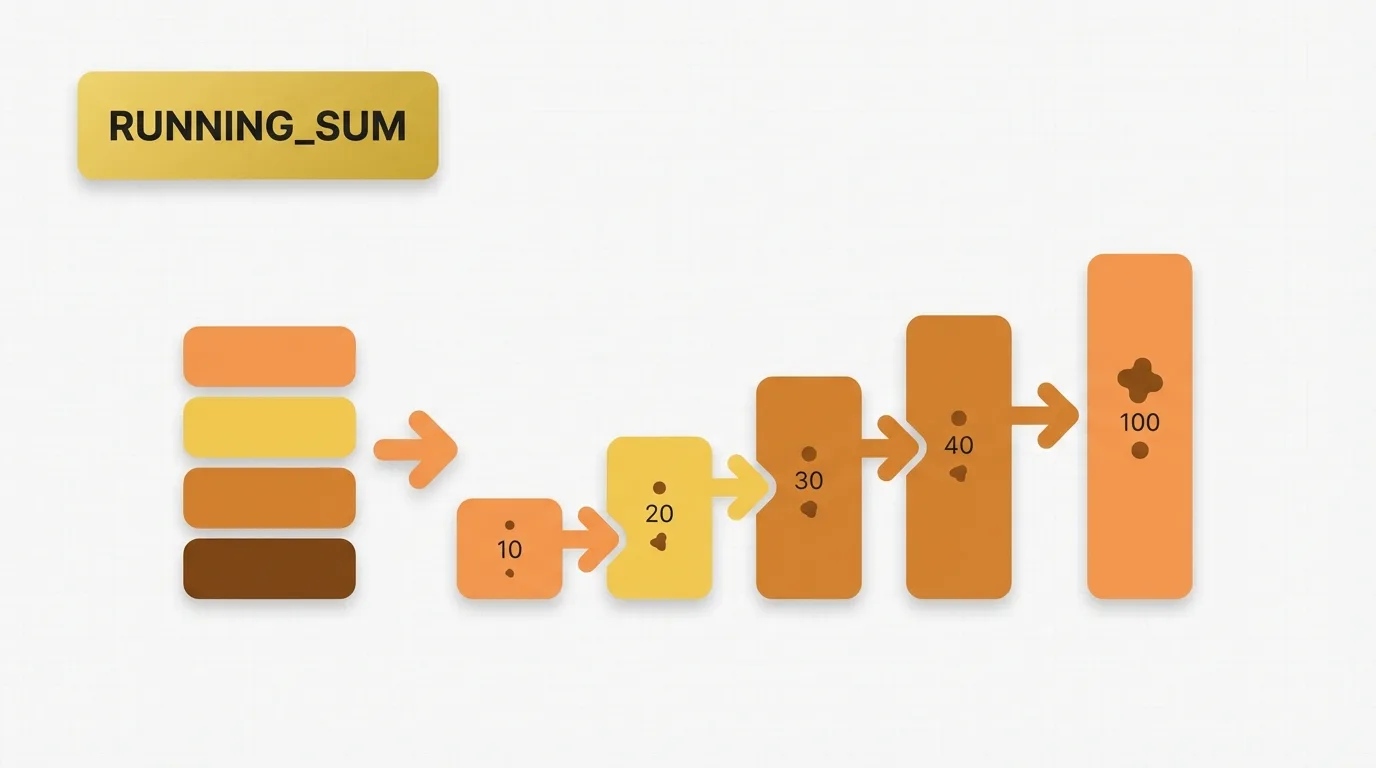
Understanding Power BI RUNNINGSUM
Learn how Power BI RUNNINGSUM works as a visual calculation in and how to use it for cumulative measures in reports.
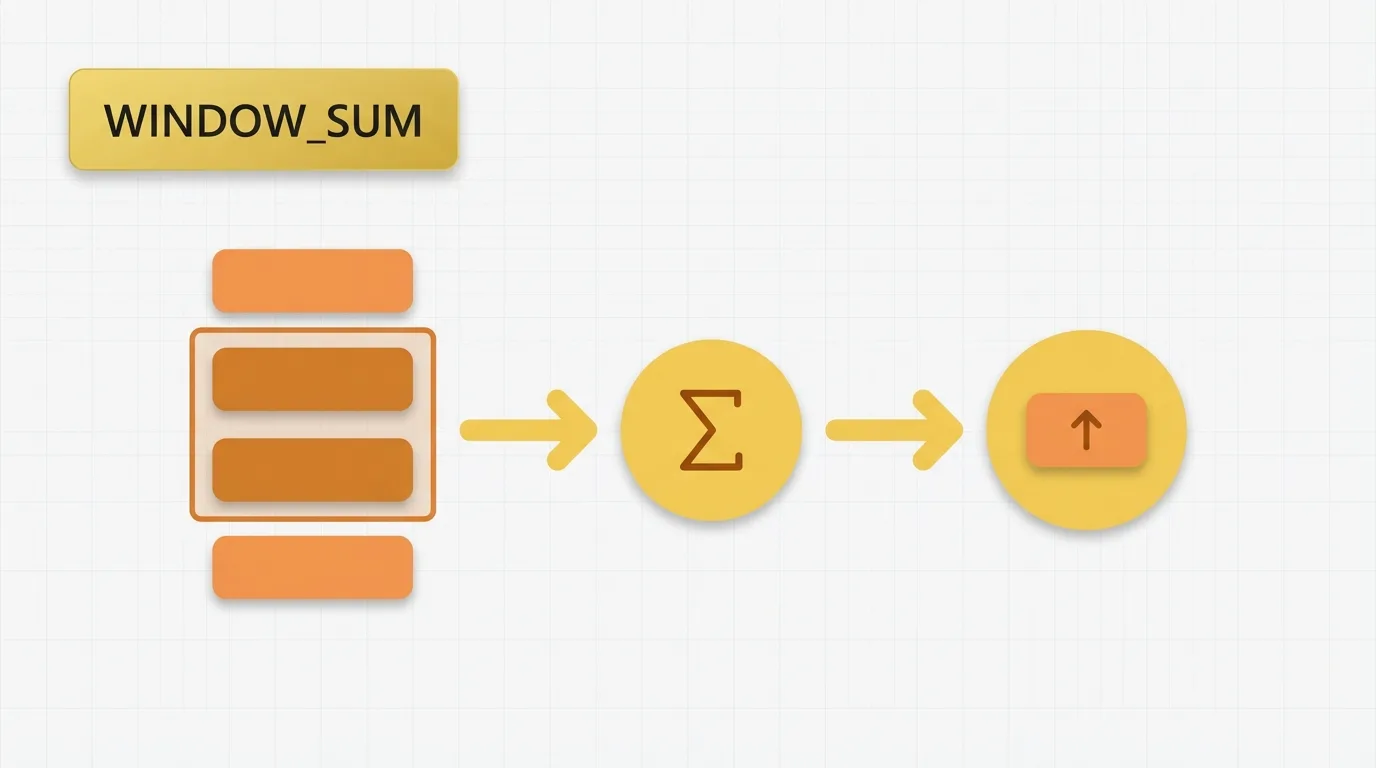
Understanding Power BI WINDOWSUMX
Learn how Power BI WINDOWSUMX evaluates an expression over a moving window in Power BI, when to use it, and how it differs from standard aggregation.
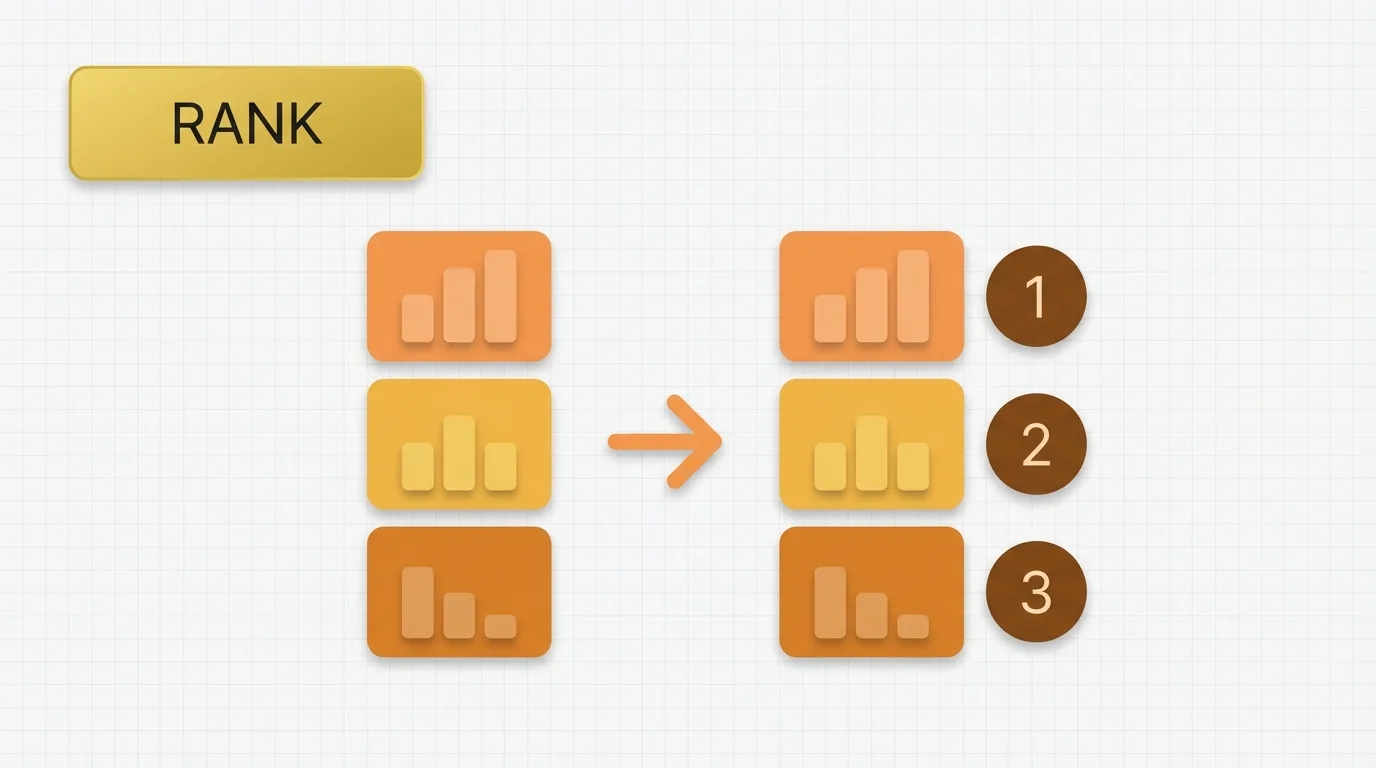
Understanding Power BI Rank Functions in Power BI: A Comprehensive Guide
Learn how Power BI rank functions work in Power BI visual calculations, when to use RANKX or RANK, and the filter behavior that can change results.
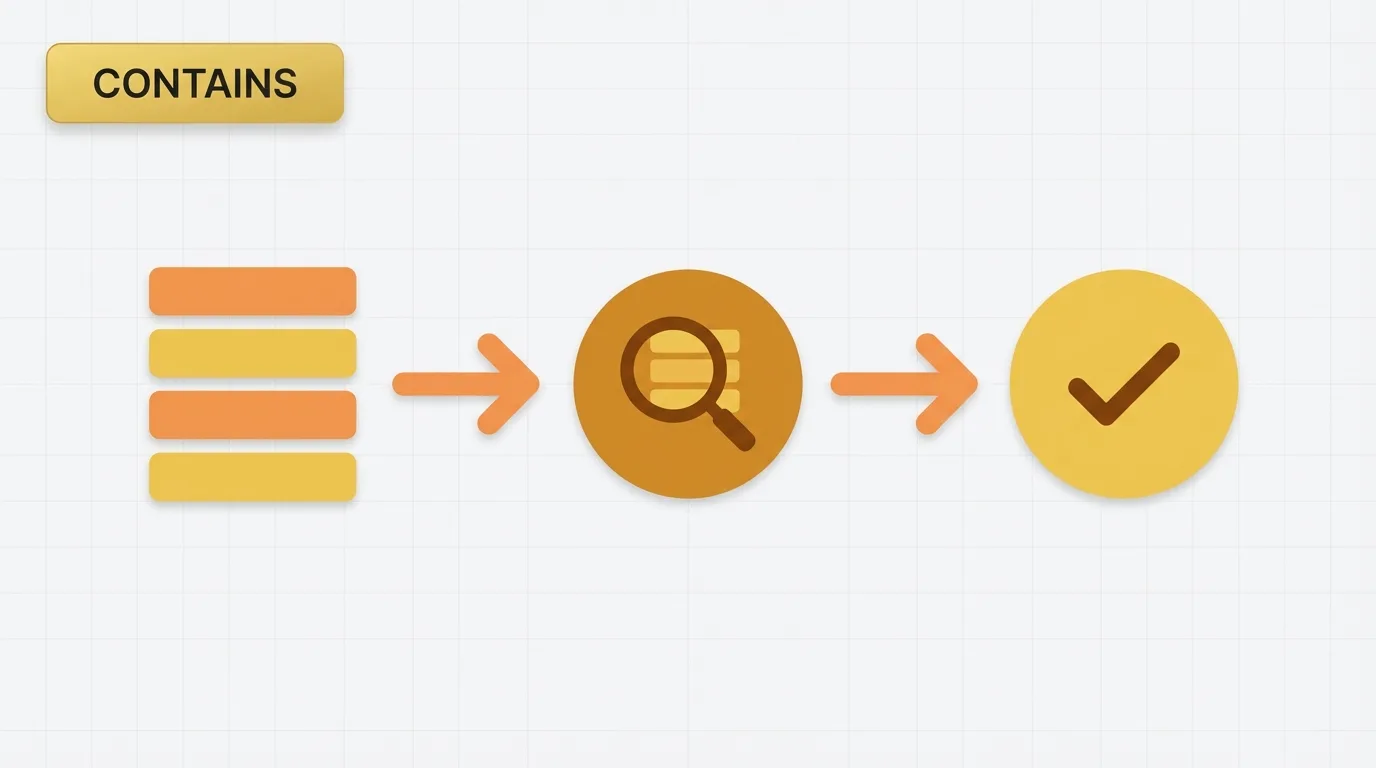
Understanding Power BI CONTAINS Functions
Learn how Power BI CONTAINS or CONTAINSSTRING and work and when to use each one, and how they behave in common text matching scenarios.
Fonts Styling
Understand how Tableau font styling translates to Power BI, including workbook themes, visual-level formatting, and branding fallback strategies.
Field Naming Aliases
Learn how Tableau field aliases differ from Power BI field naming, and how to preserve semantic clarity with model-first naming.
Column Ordering Sorting
Learn how Tableau’s manual column ordering maps to Power BI’s model-driven sorting and Sort by Column behavior.
Actions Interaction Model
Learn how to translate Tableau Actions into Power BI’s always-on interaction model using slicers, cross-filtering, bookmarks, and visual interactions.
Dynamic Titles Context Awareness
Learn how Tableau dynamic titles translate to Power BI using DAX measures, conditional formatting, and context-aware report design.
Quick Table Calculations DAX Patterns
Translate Tableau table calculations into Power BI DAX patterns for running totals, percent of total, and window-style analytics.
Sets Segmentation Patterns
Learn how Tableau Sets used for segmentation and user-driven grouping translate into Power BI using groups, calculated columns, and dynamic DAX measures.
Hide Show Navigation UX
Learn how Tableau’s hide/show navigation UX maps to Power BI using bookmarks, the selection pane, layered visuals, and button-driven report interactions.
Layout Backgrounds Positioning
Learn how Tableau’s free-form layout, background positioning, and alignment patterns translate to Power BI’s grid-based report canvas.
Analytics Layer Trends Forecasts Reference Lines
Learn how Tableau’s analytics layer features like trend lines, forecasts, and reference lines map to Power BI’s Analytics pane and DAX-based calculations.
Statistical Features CI Distribution Clustering
Learn how Tableau’s statistical features like confidence intervals, distributions, and clustering translate to Power BI, including what is native, what needs DAX, and what requires custom visuals or external tooling.
Dashboard Objects Extensions
Learn how Tableau dashboard objects, story points, web content, and extensions map to Power BI’s report pages, bookmarks, buttons, custom visuals, and embedded experiences.
Row Level Security RLS
Understand how Tableau user filters compare to Power BI role-based row-level security and how identity-based access is enforced in the semantic model.
Themes Design Systems
Learn how Tableau themes translate to Power BI JSON themes, and how to build reusable design systems that keep reports consistent across teams.
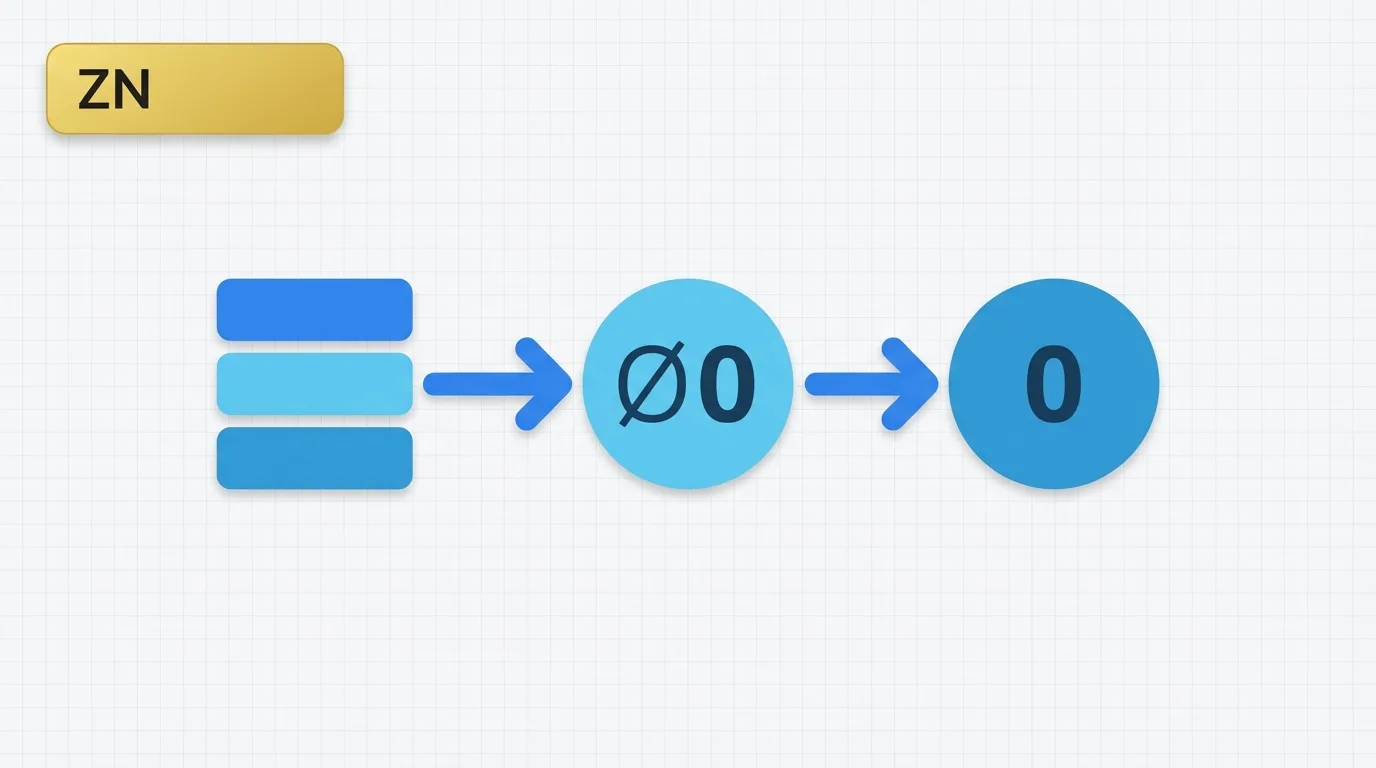
Understanding the ZN Function in Tableau
Learn how Tableau ZN handles null values by converting them to zero in calculations and dashboards.
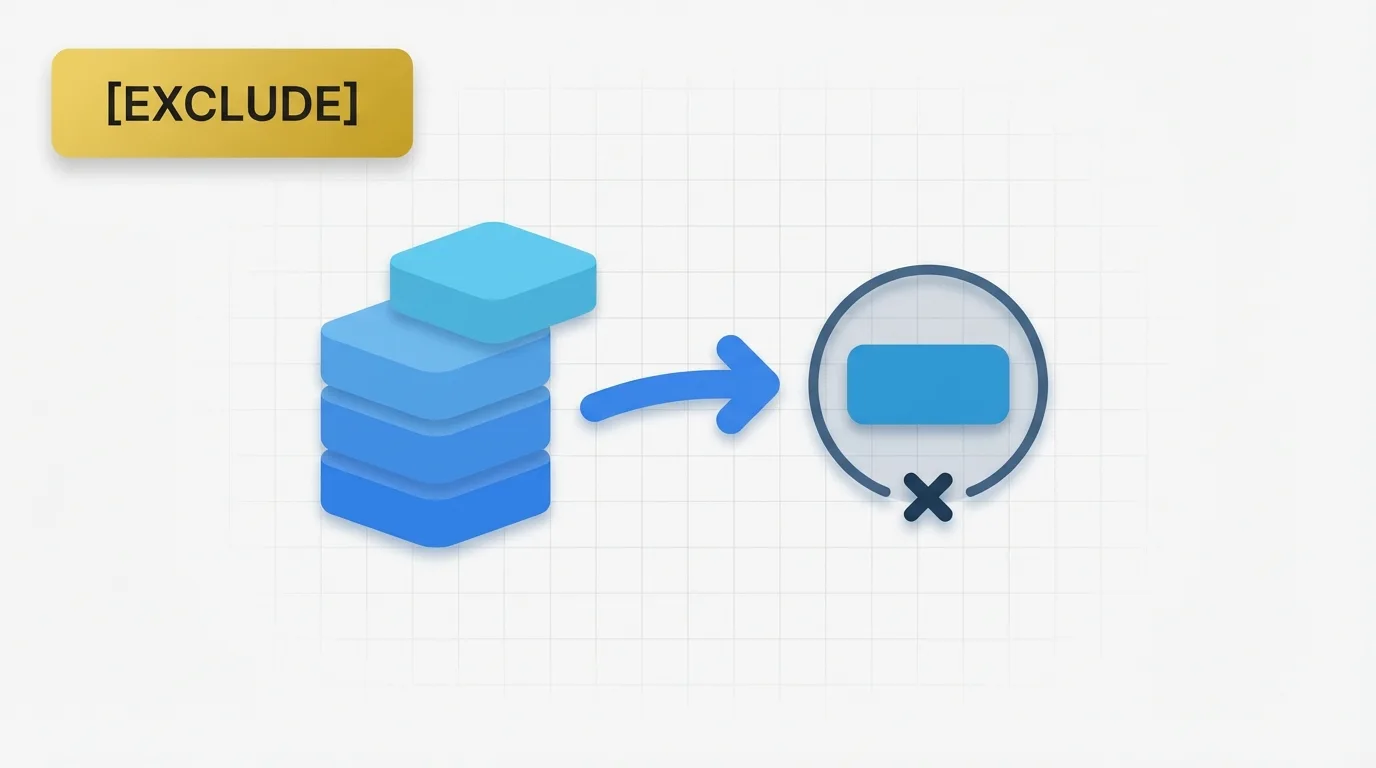
Understanding Tableau EXCLUDE: A Comprehensive Guide
Learn how Tableau EXCLUDE expressions ignore selected view dimensions to return a stable aggregate at a higher grain.
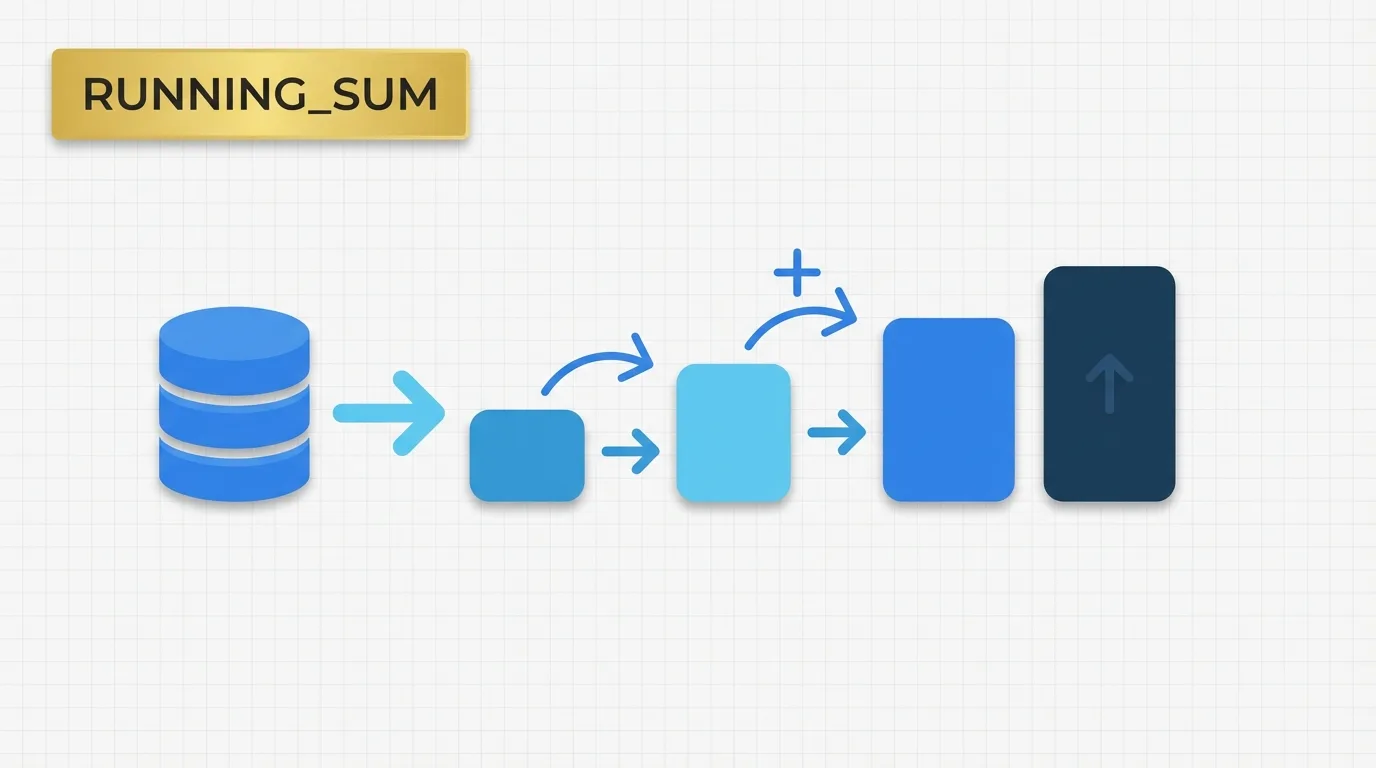
Understanding RUNNING_SUM in Tableau: A Comprehensive Guide
Explain how Tableau RUNNING_SUM calculates a cumulative total across the current table calculation partition.
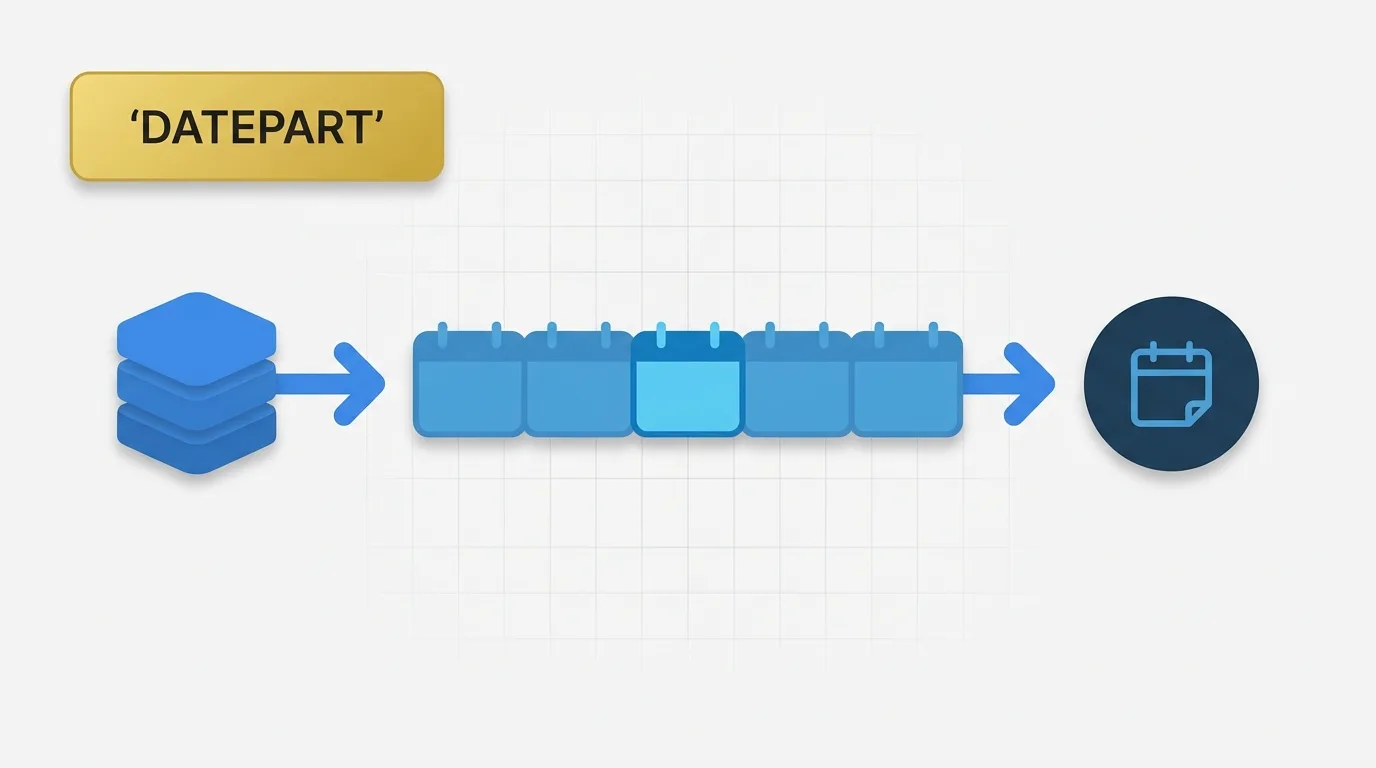
Understanding DATEPART in Tableau for Date Analysis
Learn how Tableau DATEPART extracts a specific date part for grouping, filtering, and comparison in analytical views.
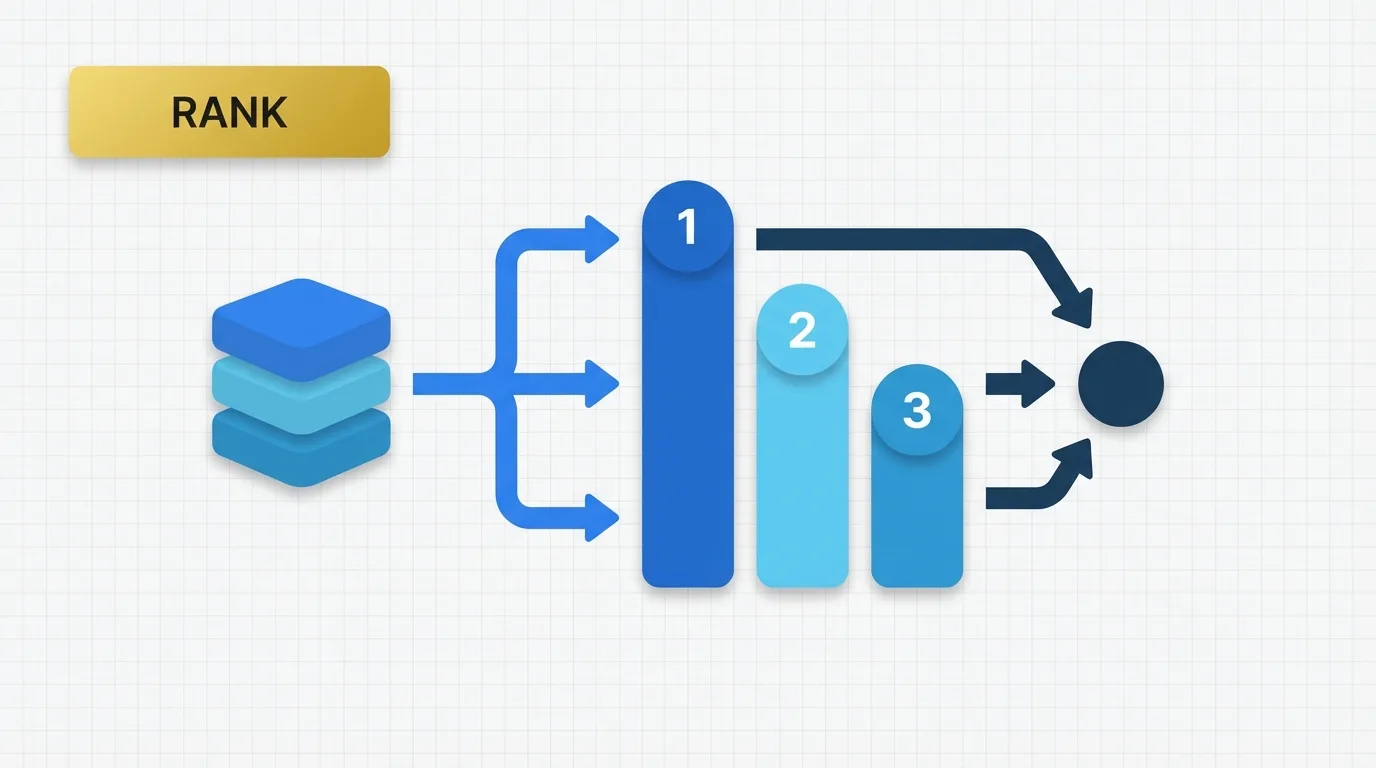
Understanding RANK in Tableau
Learn how Tableau RANK works, when to use it, and how view level detail affects the result.
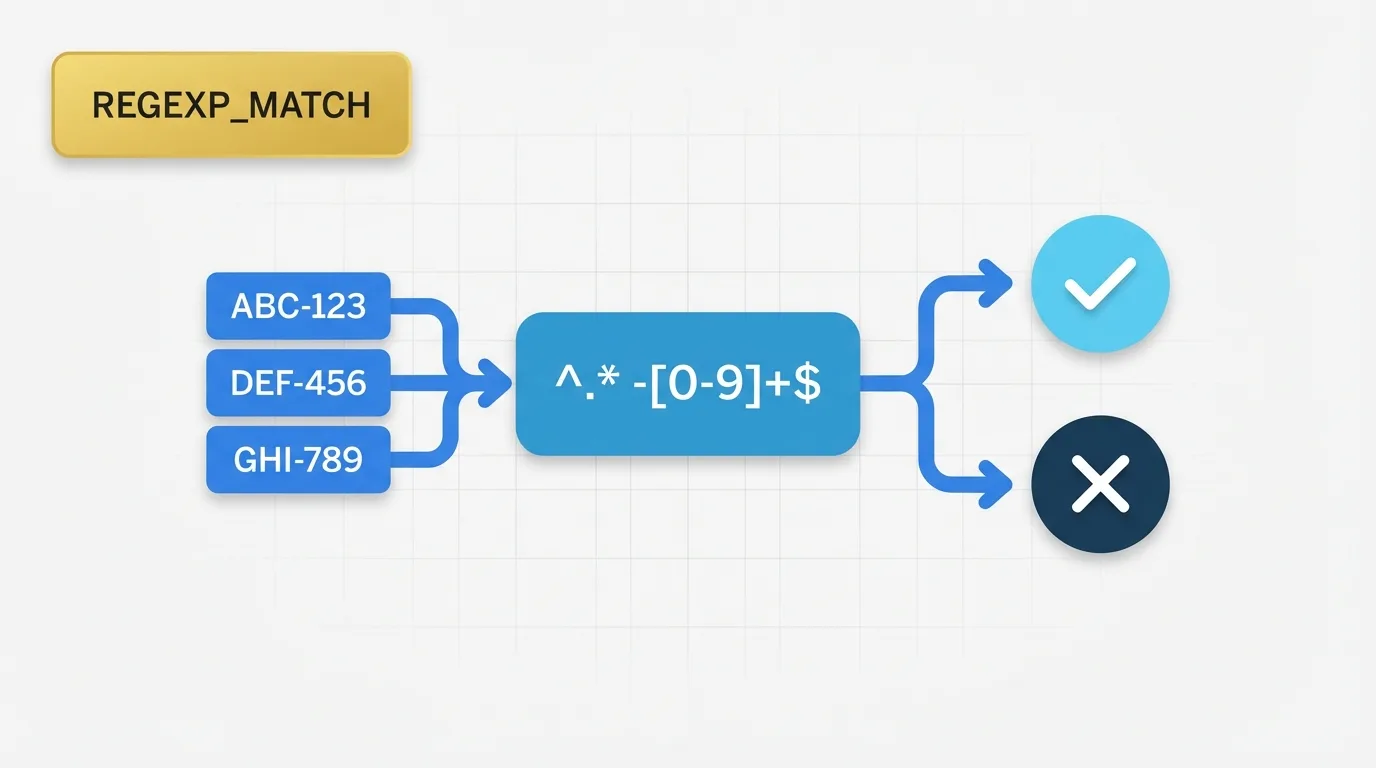
Using REGEXP_MATCH in Tableau for Pattern Matching
Learn how Tableau REGEXP_MATCH works, when to use it, and how it behaves in real analysis scenarios.
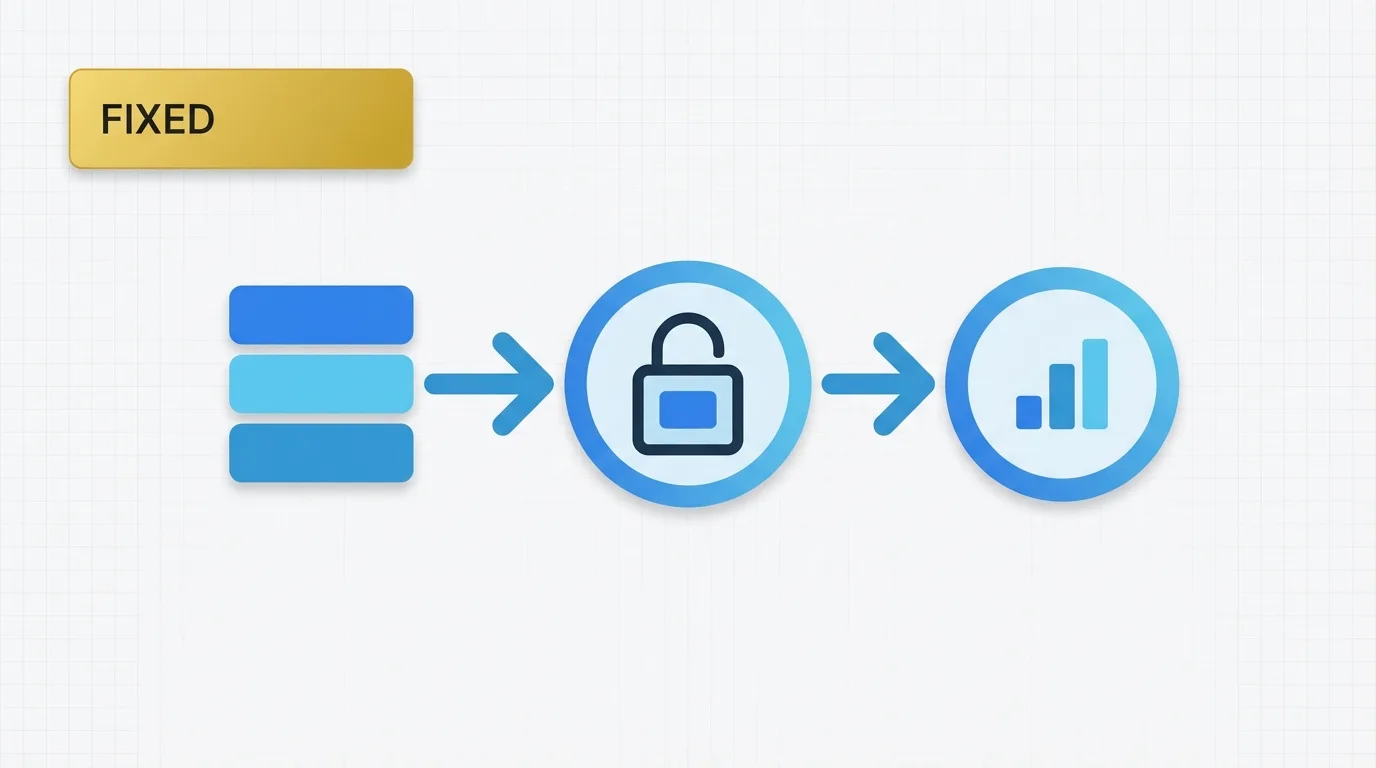
Understanding Tableau FIXED Expressions for Stable Metrics
Learn how Tableau FIXED expressions calculate a value at a chosen level of detail, even when the visualization is sliced differently.
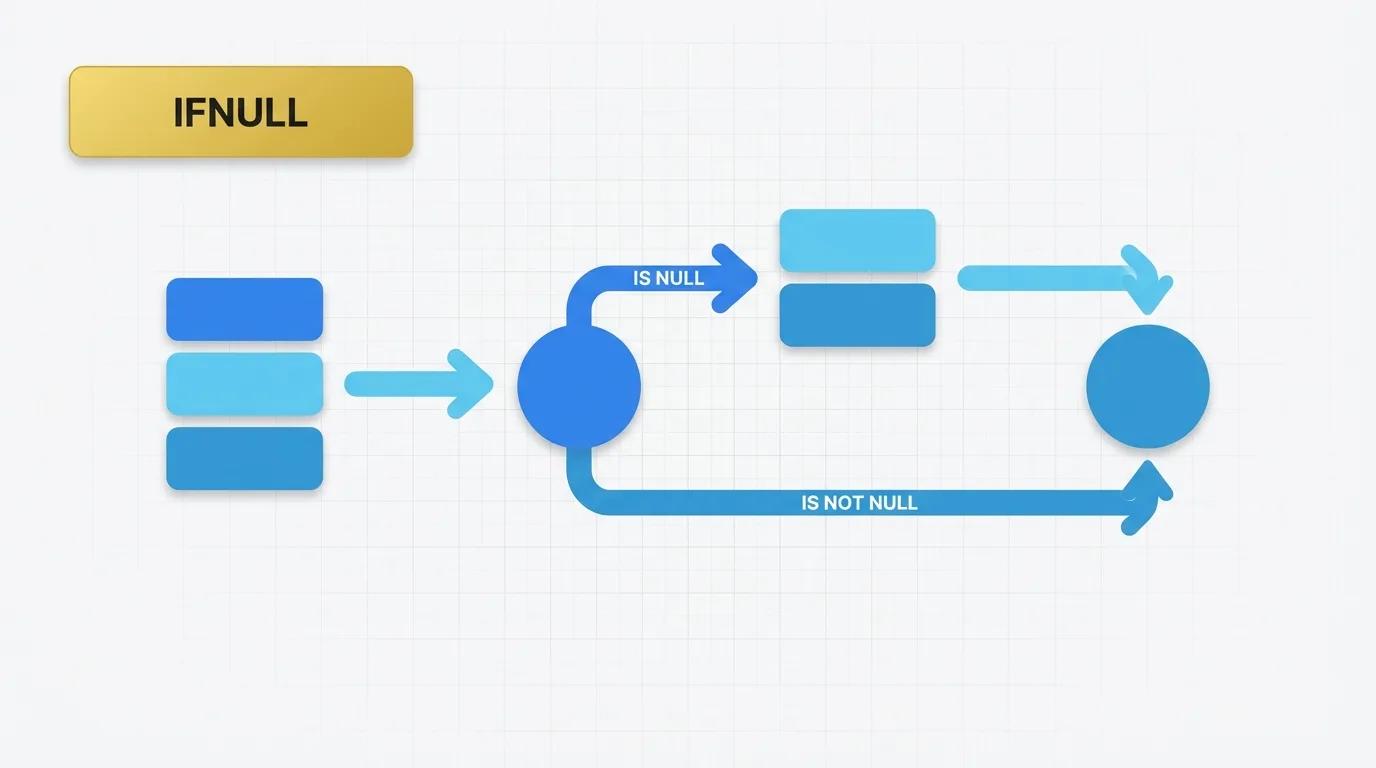
Understanding IFNULL in Tableau: A Guide for Analysts
Learn how Tableau IFNULL works, when to use it, and how it handles blank or missing values in calculations.
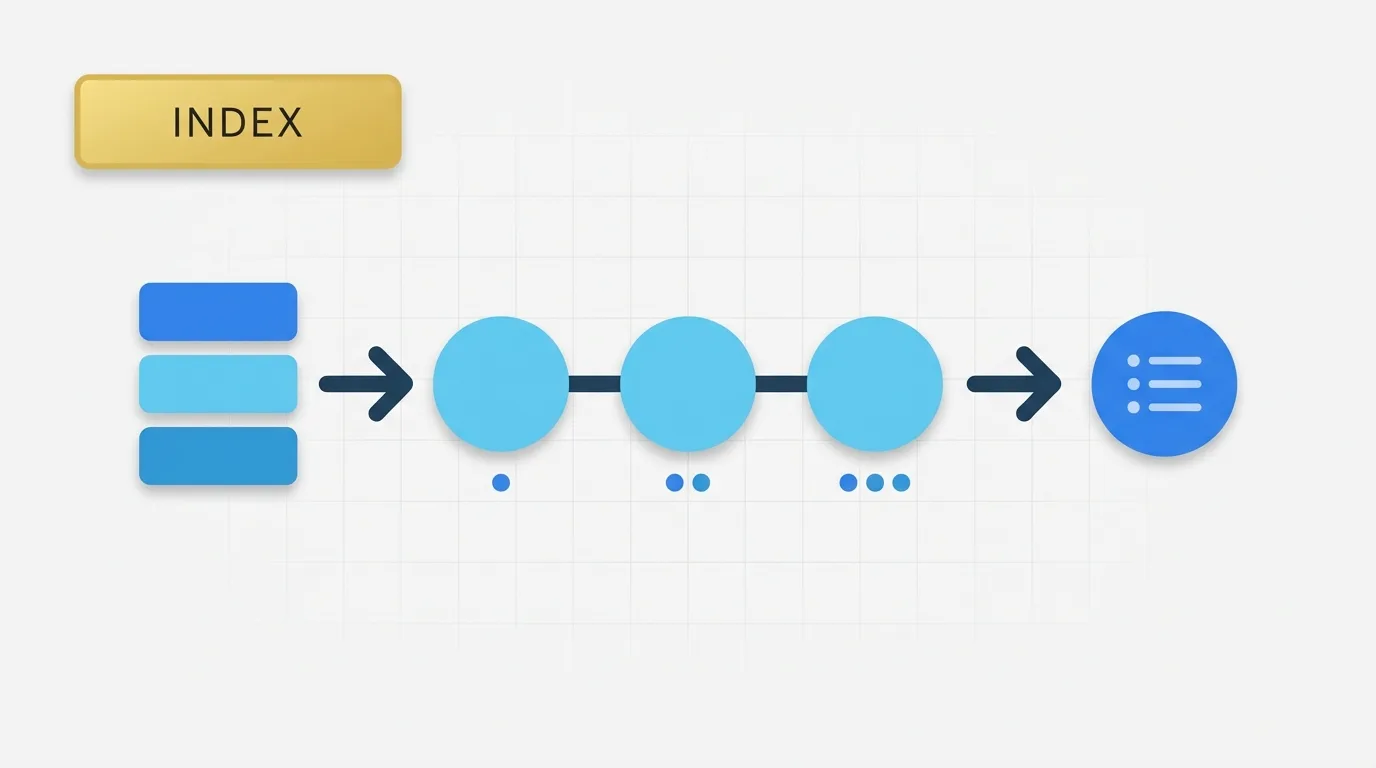
Understanding the INDEX Function in Tableau
Learn how Tableau INDEX works, when to use it, and why it behaves differently from standard row numbering.
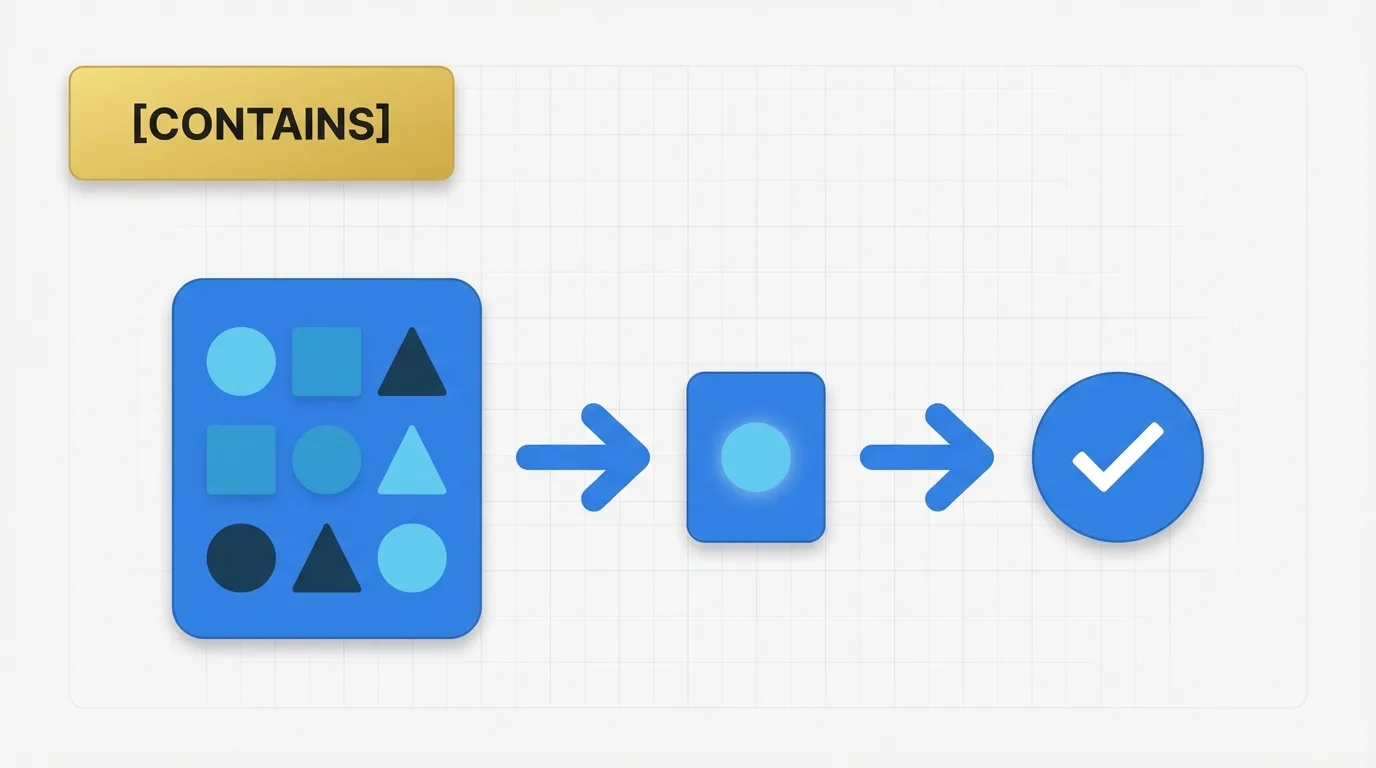
Understanding the Tableau CONTAINS Function
Learn how Tableau CONTAINS works, when to use it in string logic, and how it behaves in real analysis scenarios.
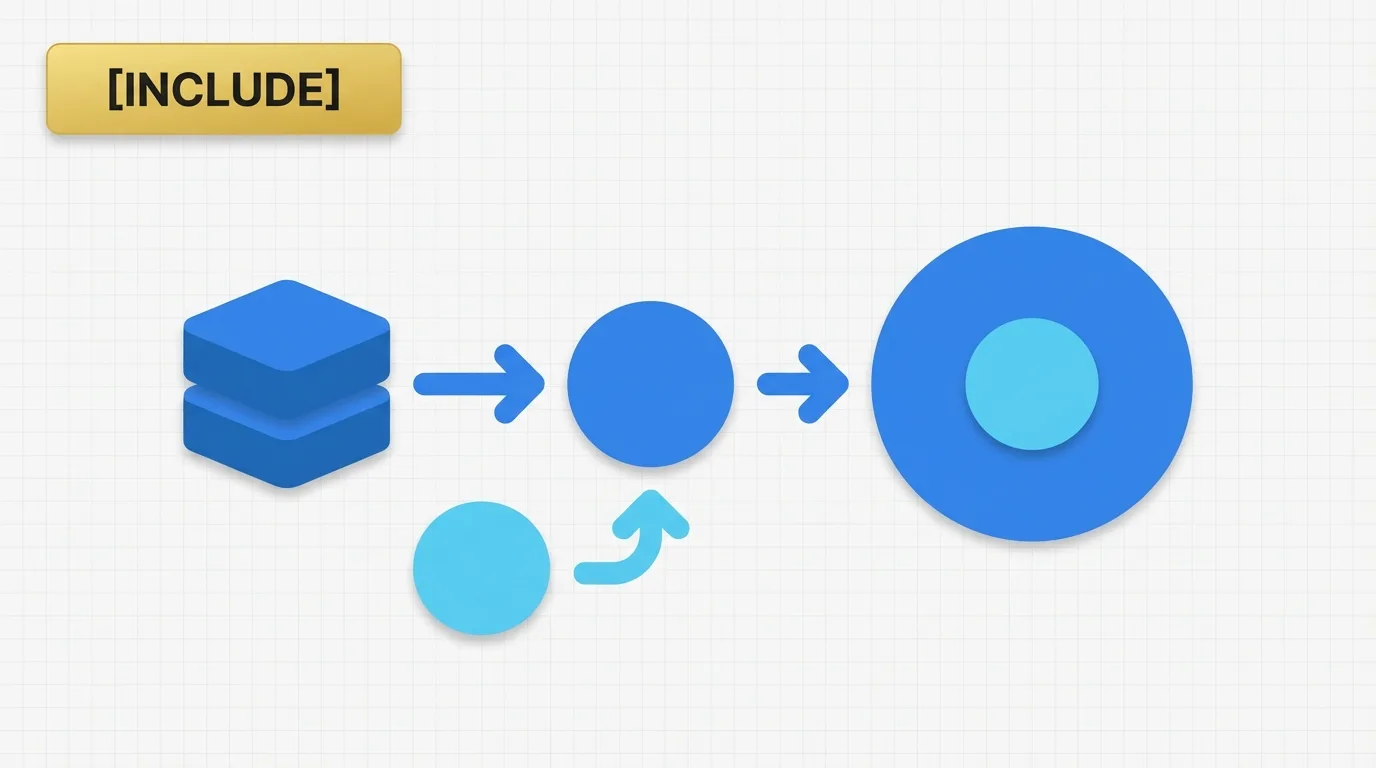
Understanding the Tableau INCLUDE Level of Detail Expression
Learn how Tableau INCLUDE LOD expressions calculate values at a finer grain than the view while still responding to the dimensions in the visualization.
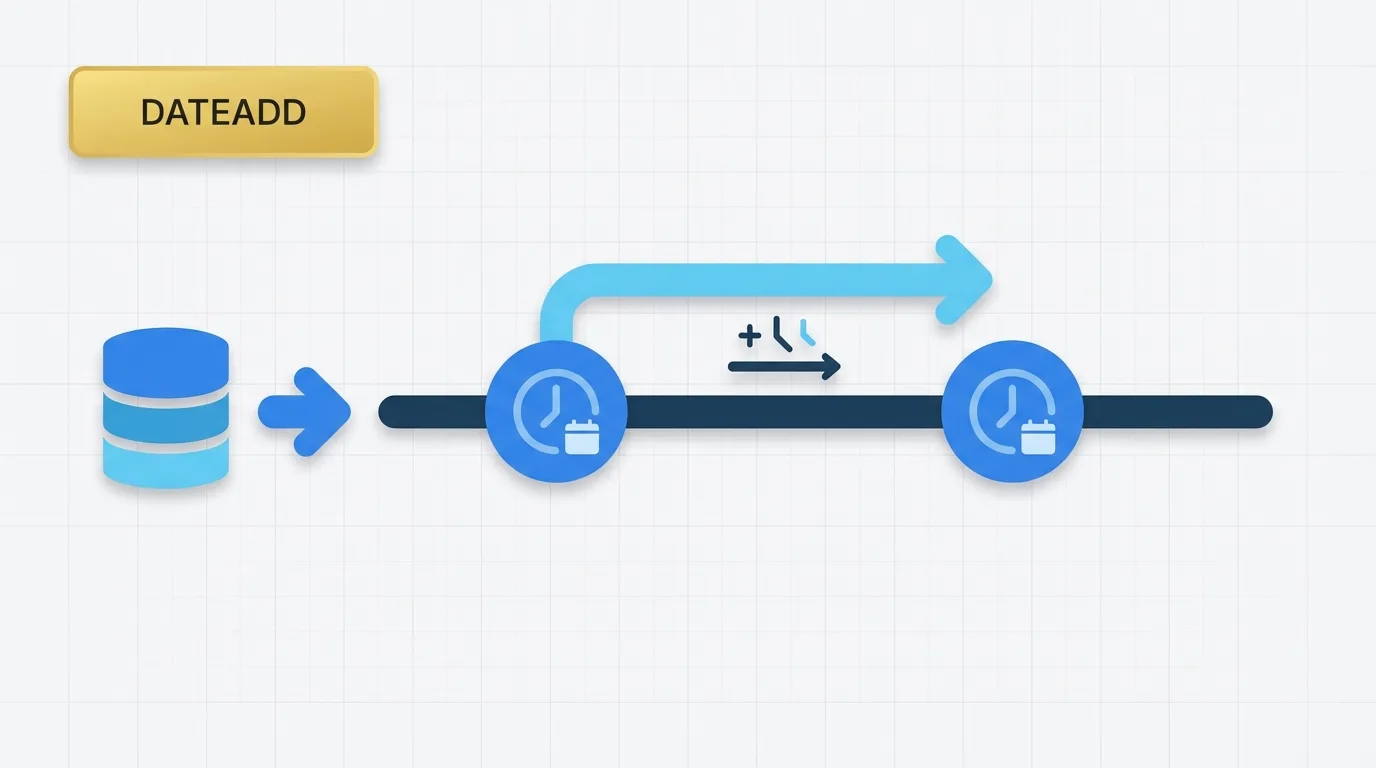
Understanding Tableau DATEADD Function for Date Manipulation
Learn how Tableau DATEADD shifts dates by a specified interval and how it behaves in common analytical scenarios.
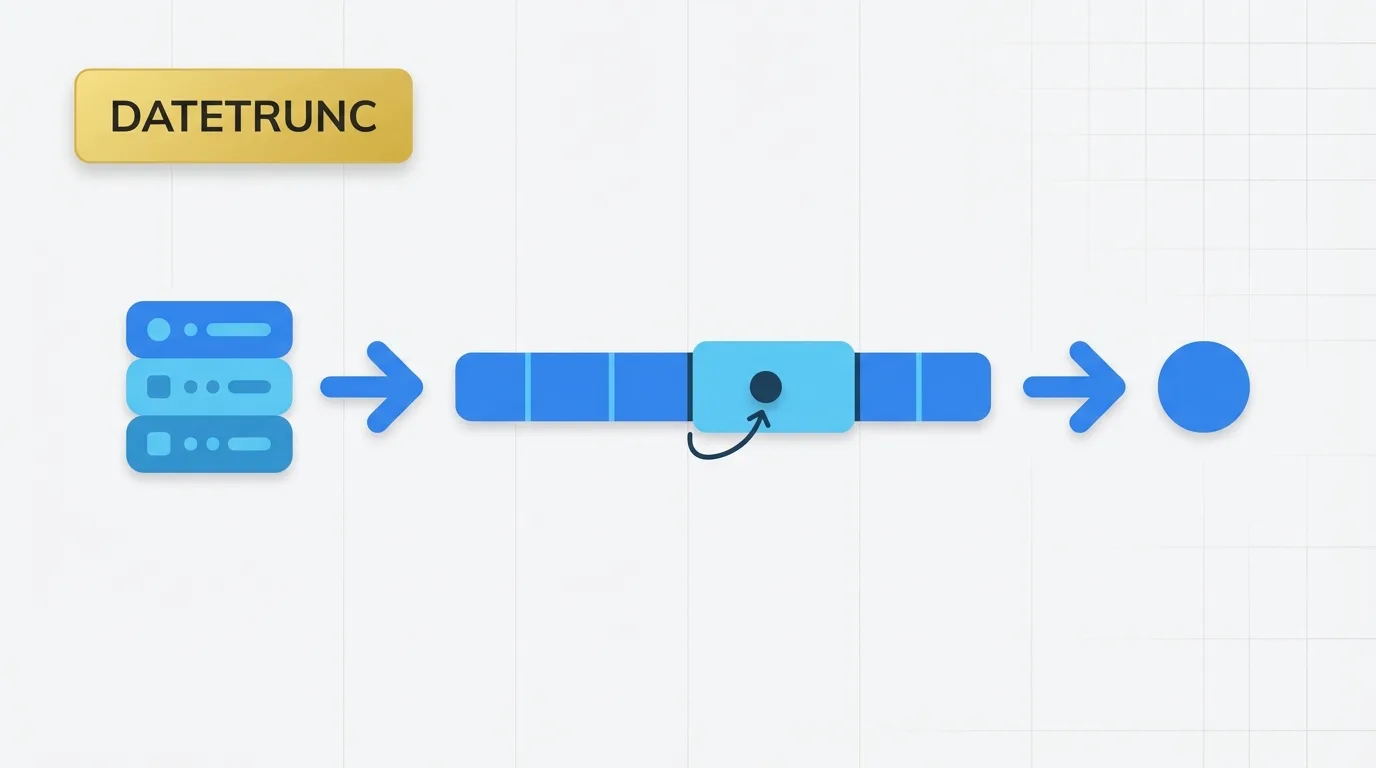
Understanding DATETRUNC in Tableau for Date Normalization
Learn how Tableau DATETRUNC groups dates to a chosen level so you can build clean time-based analysis by day, month, quarter, or year.
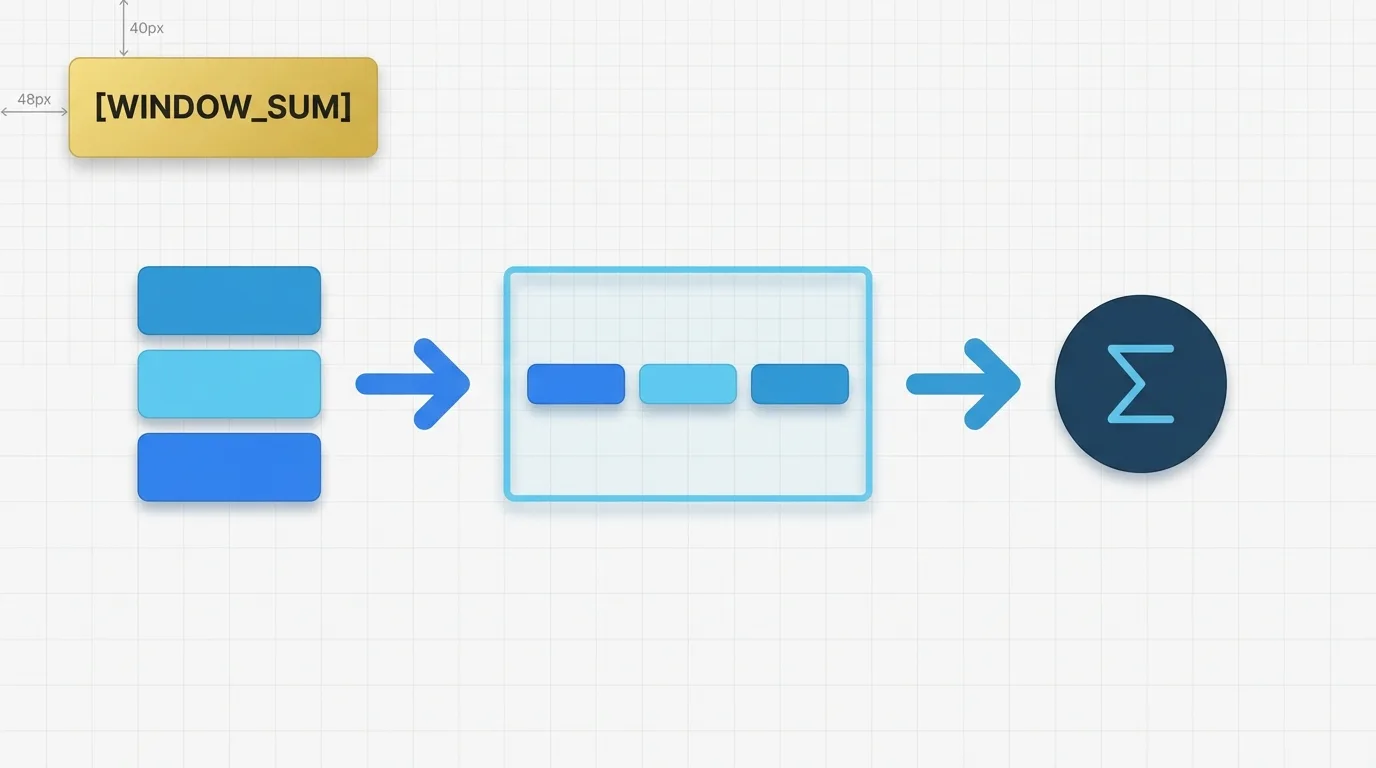
Understanding WINDOW_SUM in Tableau
Explain how WINDOW_SUM works in Tableau, when to use it, and how it behaves inside a table calculation.
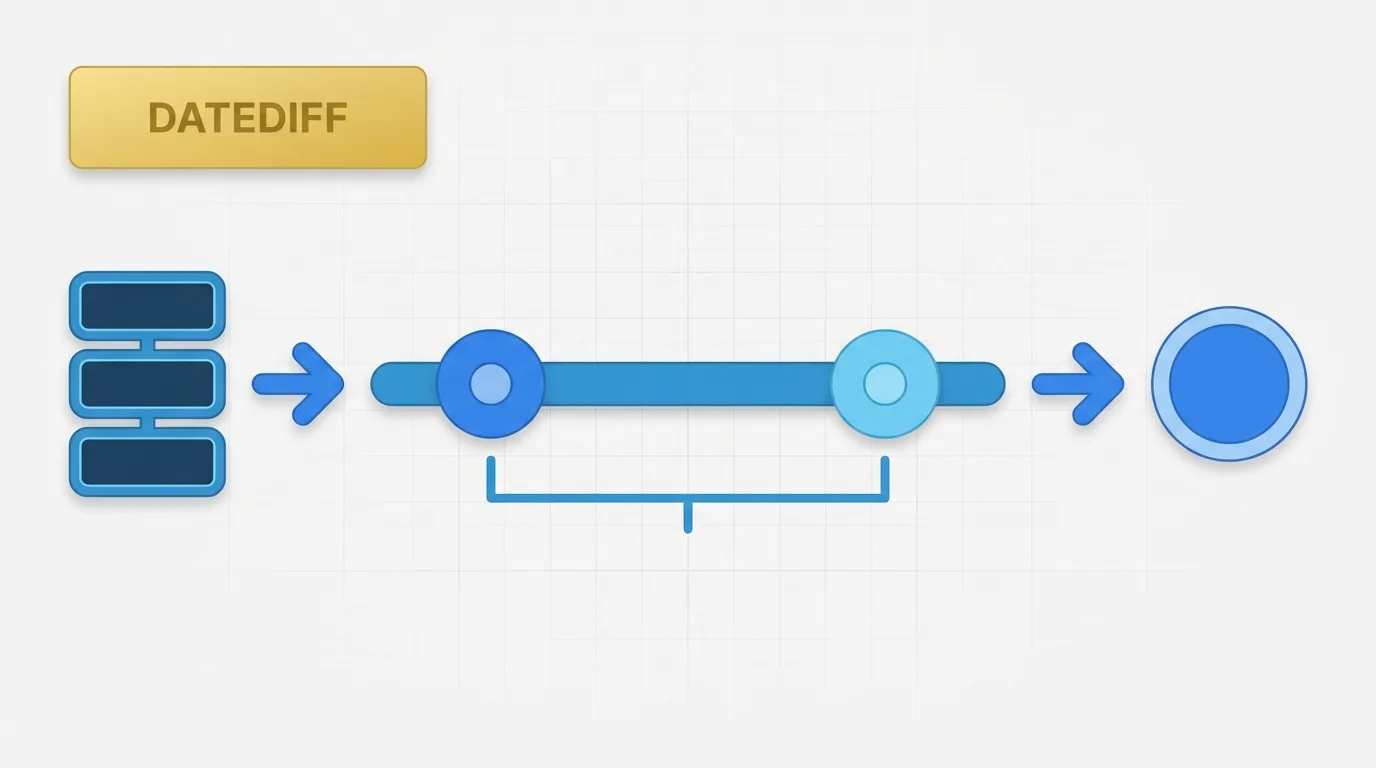
Understanding DATEDIFF in Tableau: A Comprehensive Guide
Learn how Tableau DATEDIFF works, what problem it solves, and how to use it correctly in dashboards and calculations.
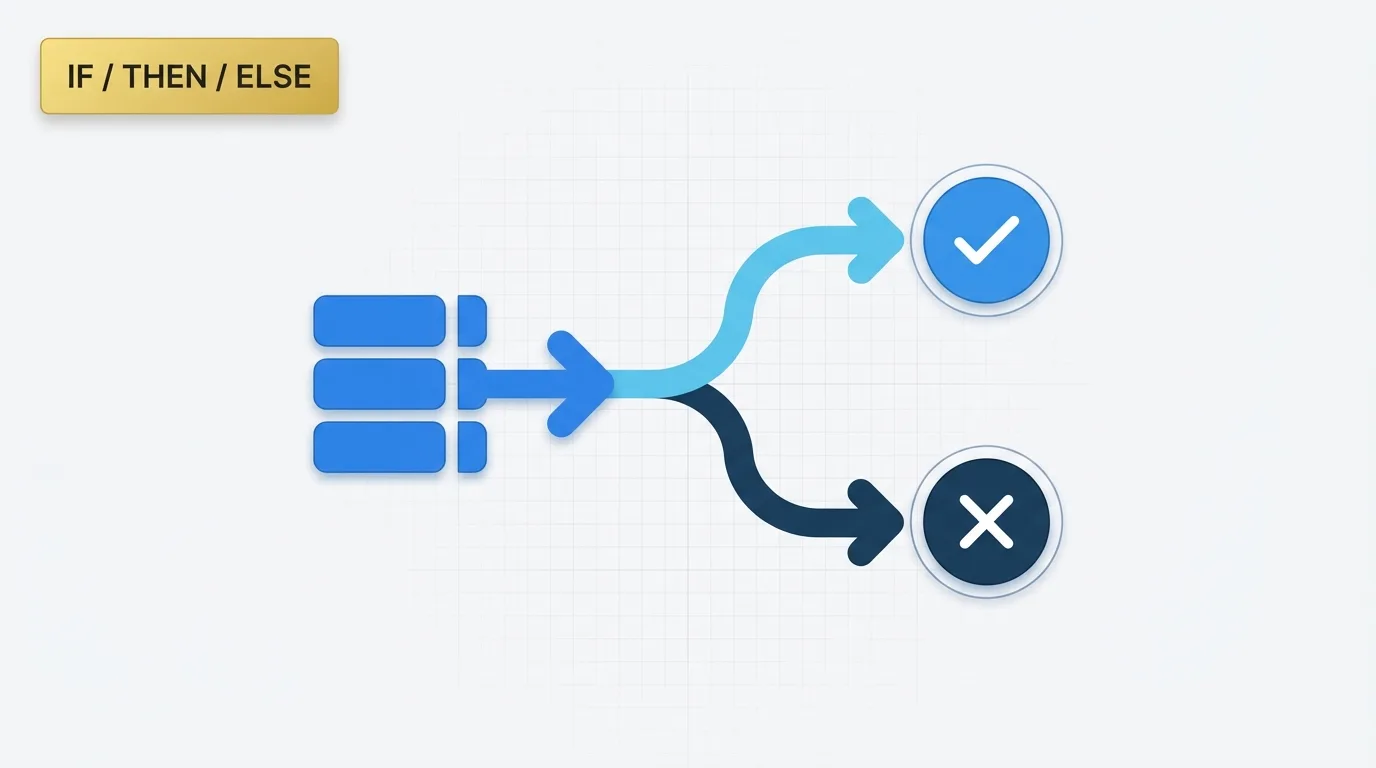
Understanding Tableau IF / THEN / ELSE Expressions
Learn how Tableau IF / THEN / ELSE expressions are used to create conditional logic for measures, dimensions, and business rules in dashboards.
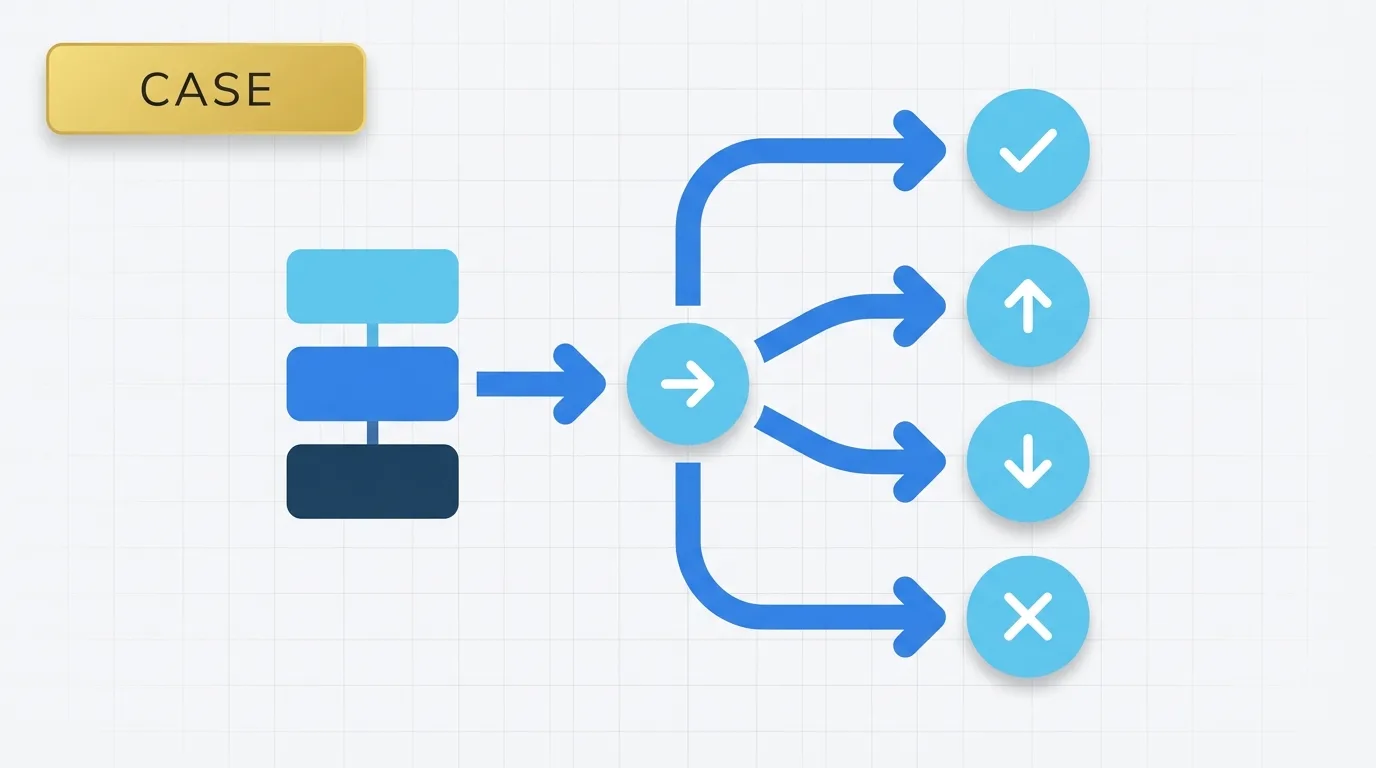
Understanding Tableau CASE Expressions for Conditional Logic
Learn how Tableau CASE expressions work, when to use them, and how they compare to nested IF statements for mapping business logic to clean outputs.