
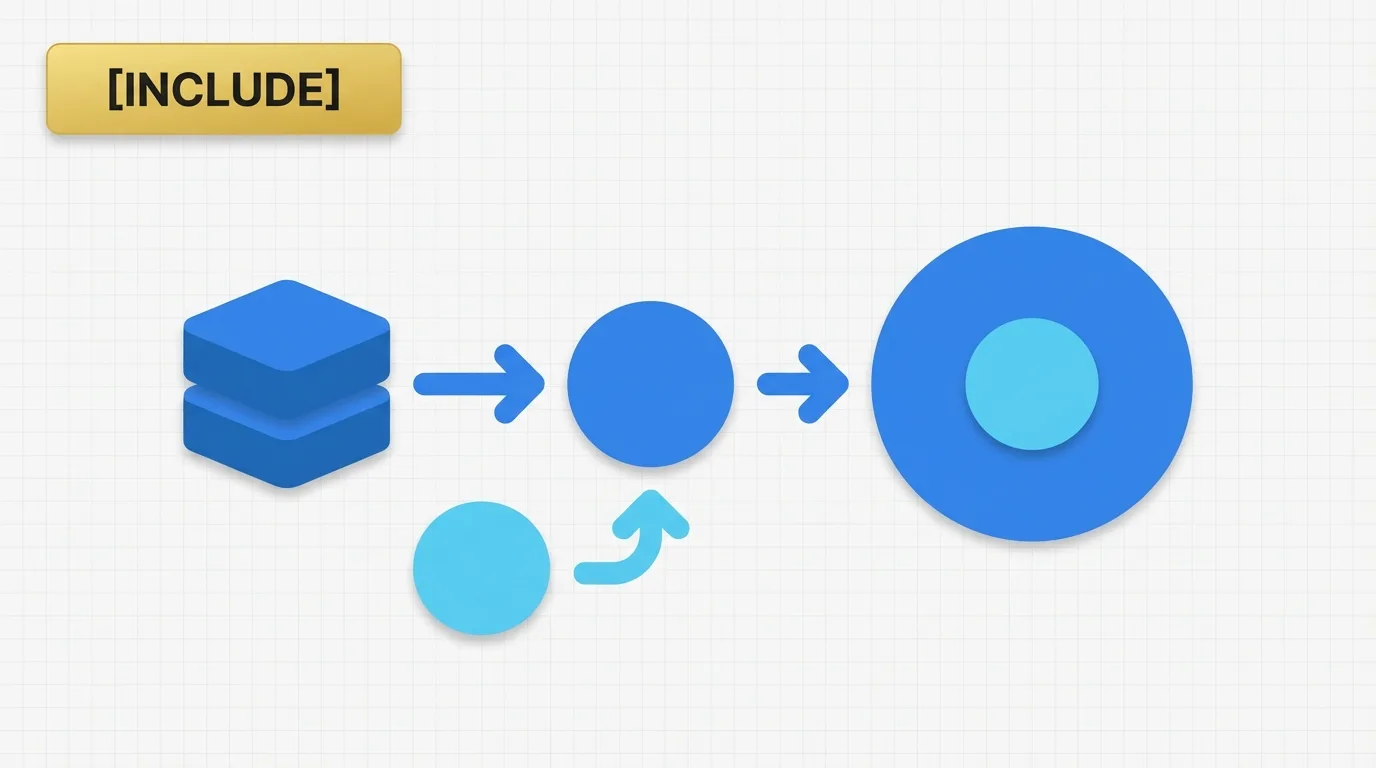
The Tableau `INCLUDE` level of detail expression is a powerful tool for analysts who need to compute measures at a finer grain than the current view while still considering the dimensions present in that view. This feature is particularly useful when a dashboard requires a value that is more detailed than the visible grouping, such as calculating order-level averages within a customer view or customer-level metrics within a regional view.

Problem Definition: The Need for Detailed Metrics
Analysts frequently encounter situations where the metrics they need do not align with the default grouping of the visualization. Common questions include:
- What is the average order size per customer when the sheet is broken down by product?
- What is the total profit per order when the dashboard displays monthly sales?
In these scenarios, the view may be aggregated too coarsely for the specific business question at hand. Simple calculations like `SUM(Sales)` or `AVG(Sales)` depend entirely on the dimensions present in the sheet, which may not suffice when a metric must be calculated at a lower level first. The `INCLUDE` expression addresses this issue by adding dimensions to the calculation grain before Tableau aggregates the result for the view.
Key Concept: How INCLUDE Works
An `INCLUDE` LOD expression allows you to calculate a measure at a more detailed level than the current visualization and then return that result back into the view. This differs from a fixed calculation, as the `INCLUDE` expression does not ignore the view dimensions. Instead, it incorporates additional dimensions during the calculation, making it useful for obtaining a more detailed intermediate result.
In practical terms:
- The view controls the final display.
- The `INCLUDE` expression governs the internal calculation grain.
- Tableau aggregates the intermediate result to match the view.
This is why `INCLUDE` is often employed for averages, ratios, and metrics that require a stable lower-level basis.
Data Example: Understanding Customer Sales
Consider the following simple order table:
| OrderID | Customer | Product | Sales |
|---|---|---|---|
| 1 | A | Bike | 100 |
| 2 | A | Helmet | 50 |
| 3 | B | Bike | 200 |
| 4 | B | Helmet | 100 |
Suppose the business question is: What is the average order sales per customer? If the view shows Product, a normal aggregation can shift the result depending on how the data is grouped. Without a special expression, Tableau may calculate sales using only the visible dimensions in the sheet.
To obtain customer-level totals first and then display them in a product-based view, a more detailed calculation is necessary.
For Customer A:
| Customer | Total Sales |
|---|---|
| A | 150 |
For Customer B:
| Customer | Total Sales |
|---|---|
| B | 300 |
If the sheet is grouped by Product, the customer totals still need to be formed from the underlying rows before Tableau returns a result to the view. This is the role of `INCLUDE`.
Tool Implementation: Creating an INCLUDE LOD Expression
In Tableau, Level of Detail expressions allow you to control the grain of a calculation. The `INCLUDE` version adds dimensions into the calculation, even if those dimensions are not present in the visualization.
Syntax
“`plaintext
{ INCLUDE [Dimension] : Aggregation }
“`
Example
“`plaintext
{ INCLUDE [OrderID] : SUM([Sales]) }
“`
This expression instructs Tableau to calculate sales at the level of the current view plus `OrderID`. If the view is already at a higher level, Tableau will still compute the measure using the included dimension first.
Applied Example: Customer Sales in a Product View
Assume we want to calculate customer sales while the sheet displays Product. A possible expression is:
“`plaintext
{ INCLUDE [Customer] : SUM([Sales]) }
“`
This tells Tableau to calculate sales at the level of the view plus Customer, then aggregate the result for display.
Using the sample data:
| Product | Customer | Sales |
|---|---|---|
| Bike | A | 100 |
| Helmet | A | 50 |
| Bike | B | 200 |
| Helmet | B | 100 |
The expression first computes sales by customer:
| Customer | Customer Sales |
|---|---|
| A | 150 |
| B | 300 |
Tableau then returns that calculation to the current view. If the product dimension is also on the sheet, the result is still shaped by the product view, but the calculation has already been expanded to include customer in the grain. This is particularly useful when the business requires metrics based on a more detailed unit than the chart level.
Why the INCLUDE Feature Exists
Tableau typically aggregates based on the dimensions present in the view. For instance, if the sheet contains Product and Region, a basic measure like `SUM([Sales])` is calculated at the Product and Region level. This behavior is expected for most charts. However, some metrics necessitate a lower-level calculation first, such as:
- Average order value
- Customer lifetime value
- Per-transaction ratios
- Normalized measures
- Detail-level denominators for percentages
The `INCLUDE` expression allows analysts to expand the calculation grain without altering the entire view. This is especially beneficial when the dashboard must maintain a business-friendly level while requiring row-level or transaction-level precision underneath.
Important Behavioral Details of INCLUDE
1. INCLUDE Depends on the View
Unlike `FIXED`, `INCLUDE` does not completely ignore the dimensions in the sheet. The view still matters. The expression adds dimensions to the calculation, but the final result is still influenced by the visualization grain.
2. INCLUDE is Affected by Tableau’s Order of Operations
Filters and other worksheet behaviors can alter the result. A dimension filter may remove rows before the calculation is finalized, which is significant when the included dimension exists only in filtered data.
3. INCLUDE is Often Aggregated Again
A common source of confusion is that `INCLUDE` does not always return a single raw value. Tableau may calculate at the included grain and then aggregate the result back to the view. This means the final output can differ from a direct row-level expression.
4. INCLUDE is Not the Same as FIXED
`FIXED` locks the calculation to a specific set of dimensions, while `INCLUDE` expands the calculation grain based on the current view. This distinction is crucial during migration work. If a report expects stable totals regardless of the sheet dimensions, `INCLUDE` may not be the appropriate choice.
5. Measure Type Still Matters
The aggregation inside the expression is important. For example:
“`plaintext
{ INCLUDE [Customer] : SUM([Sales]) }
“`
“`plaintext
{ INCLUDE [Customer] : AVG([Discount]) }
“`
The expression controls the level of detail, while the measure function dictates how values are combined at that level.
Real Usage Patterns for INCLUDE
Common applications of `INCLUDE` include:
- Average order value by customer
- Customer-level totals within product views
- Transaction-based metrics in monthly dashboards
- Ratios requiring a lower-level denominator
- Normalized measures across regions or segments
- Detail-aware calculations in KPI tiles
- Metrics that should respect the current sheet but utilize a finer calculation grain
Practical Interpretation of INCLUDE
A useful way to conceptualize `INCLUDE` is as follows: First, Tableau adds the specified dimension to the calculation. Then it computes the aggregate at that more detailed level. Finally, it returns the result to the current view. This makes `INCLUDE` valuable when the question is not simply “What is the total?” but rather “What is the total computed from a more detailed basis?”
Conclusion
The `INCLUDE` expression is a vital feature in Tableau that allows analysts to perform calculations at a more granular level while still respecting the dimensions present in the visualization. Understanding how to effectively use this feature can significantly enhance the accuracy and relevance of the metrics displayed in your dashboards.
